As of January 1, 2021, OPL will no longer be charging late fees for items that are overdue or processing fees for lost items.
The below instructions are only for reading newspapers and magazines offline using the PressReader app. In addition, if you are visiting one of our library branches, you do not need to create a PressReader Account to download to the app. This is only if you wish to download for offline use from outside the library. If accessing PressReader through a web browser, simply click on the link on our website, choose a magazine or newspaper and start reading.
Account Set Up for Offline Reading
Setting up a PressReader Account is completely optional and allows you to save your personalized experience including bookmarking articles, setting up email alerts and downloading newspapers / magazines for offline use through the app.
- Log into PressReader from our website using your library card
- Close the PressReader HotSpot pop up
- Click on "Sign In" in the upper right hand corner
- Click on "New User? Sign up now"
- Enter your email address, password and name
- Please read the terms of use and privacy policy before continuing then click Done.
Downloading for Offline Use
- Follow the “Account Set Up” instructions as above
- Download the app for your device: https://care.pressreader.com/hc/en-us/articles/204520009-Download-the-Latest-App
- Open the app and sign in using the PressReader account you created then click Authorize.
- Click on the circle with three lines in upper left hand corner to browse selection. Choose your newspaper and click on download/open.
Please note that once the PressReader app is authorized, it gives you full access for a limited amount of time. Once this expires, you must do the following:
- Open your web browser, return to our website and click on the PressReader link.
- Once on PressReader, check that you are still logged in with your PressReader account.
- Open the app. You should now have another window of unlimited access.
For further information, the Help Center has several videos on how to use PressReader: https://care.pressreader.com/hc/en-us
Support
In order to link/authenticate your new library card number to an existing PressReader account, you can follow the steps below.
- Go to http://www.pressreader.com/ and click Sign in in the top-right corner of the page.
- Enter your email address and password, then click Sign In.
- Once logged in, click the profile (silhouette) icon in the top-right corner and select My Account.
Scroll down to the Social and Linked Networks section and click Edit next to Library or Group.
Image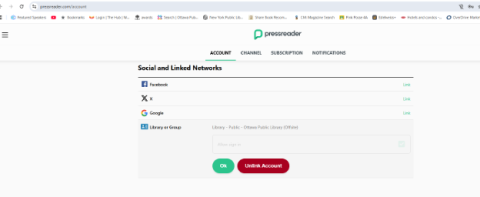
If a library card is already linked and you need to change it, click Unlink account first, then repeat this step.
- Select your library from the list, enter your library card credentials, and click Sign in.
Once the library card number is linked to a PressReader account, you can sign in using Library or Group with your library card number. This will automatically sign you in to the associated PressReader account.
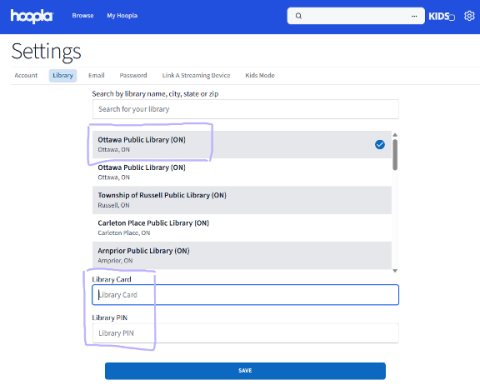
If you have replaced your card since you first registered with Hoopla, you may need to update your card number in Hoopla.
- Sign in to your Hoopla account (with your email address and password) through the Hoopla link under the OPL online Resources portal or go directly to hoopladigital.com.
- Click on the gear (⚙️) icon in the top right corner to open Settings.
- Click on the "Library" tab.
- Do not enter spaces in the number field. Enter your new library card number in the field where your old number displays.
- In the PIN field, enter your PIN
- Click "Save". To save your changes. A green confirmation message should appear.
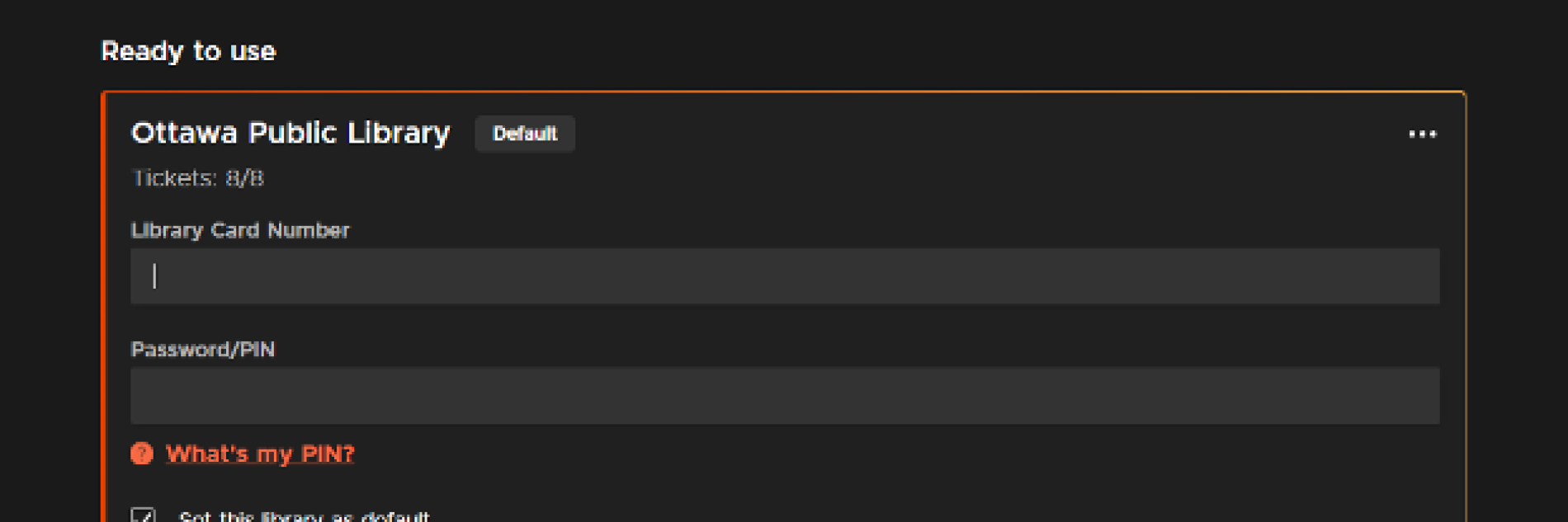
On the Kanopy website, you can update your library card number and PIN by selecting Edit on the My Libraries screen.
- Log in to your Kanopy account through Kanopy link under the OPL online Resources portal or go directly to kanopy.com
- Select the menu button in the top-right corner and go to My Account > My Libraries.
- Select ••• next to a library, then select Edit.
After selecting Edit, you can update your library credentials. You can also check the "Set this library as default" option to set a default library. Select Save to save your changes.
If your items have been damaged in a flood or fire, please contact us through our Contact Us page or visit us in branch. We will work with you on a resolution and can provide invoices for insurance claims.
Materials that off-gas hazardous chemicals when burned May Not be used.
Prohibited materials include:
- vinyl,
- painted or varnished wood,
- glazed tiles.
List of acceptable materials for the laser cutter
Wood
Engrave / Cut
Acrylic
Engrave / Cut
Fabric
Engrave / Cut
Glass
Engrave Only
Coated/Painted Metals
Engrave Only
Ceramic
Engrave Only
Delrin
Engrave / Cut
Cloth
Engrave / Cut
Leather
Engrave / Cut
Marble
Engrave Only
Matte Board
Engrave / Cut
Melamine
Engrave / Cut
Paper
Engrave / Cut
Mylar
Engrave / Cut
Pressboard
Engrave / Cut
Wood Veneer
Engrave / Cut
Fibreglass
Engrave / Cut
Tile
Engrave Only
Plastic
Engrave / Cut
Cork
Engrave / Cut
Corian
Engrave / Cut
Anodized Aluminum
Engrave Only*
Stainless Steel
Engrave Only*
Brass
Engrave Only*
Titanium
Engrave Only*
Bare Metals
Engrave Only*
*CO2 lasers will mark bare metals when coated with a metal marking solution.
Getting started with cloudLibrary using Android
You can use the cloudLibrary app to get express eBooks and audiobooks on your Android device
Step 1
Install cloudLibrary from Google Play
Step 2
Open the cloudLibrary app. You will first get a welcome screen. Tap anywhere to continue. Next, it will first ask you to select a Country. Make sure that Canada (CA) is selected. Tap on Ontario and then tap on Ottawa Public Library from the list of libraries.
Step 3
Enter your library card / PIN and tap on Login. By continuing you are agreeing to cloudLibrary’s terms of use.
Step 4
Since holds are not allowed on the entire cloudLibrary collection, we suggest that you use the filter option. To display only titles that are available, tap on the top left hand corner of the app. Next, tap on Filters, then on the box beside Available Now.
Getting Started with cloudLibrary for Windows and Kobo
With a Windows computer, you can borrow and enjoy eBooks and audiobooks from cloudLibrary’s website.
Step 1
Visit the cloudLibrary page at: https://ebook.yourcloudlibrary.com/library/ottawapl/
Step 2
Click on Login and enter your library card and PIN
Step 3
Our Express collection does not allow for holds. To see what titles are available, click on Filters, and choose Available Now.
Step 4
Choose an available title and click on Borrow.
Step 5
Click on Read or Listen. The title will open in your web browser. To view or return checked out titles, click on My Books
To transfer titles to a Kobo
Please follow these instructions for transferring express eBooks to a Kobo eReader
How do I return an eBook?
Please note that you can only have 2 Express eBooks checked out at a time. To return an eBook click on My Books, List View, and then Return.
I accidentally accepted the cloudLibrary ID instead of installing my personal Adobe Digital Editions ID.
For Windows 7 Go to the Start menu. Search %appdata% This should pull up a list of folders. Delete the cloudLibrary folder (basically just its cache, it is also where it stores an Adobe ID for DRM purposes). The next time you check out a book in the cloudLibrary and open it, the cloudLibrary will use whatever Adobe ID your Adobe Digital Editions is authorized with. If you do not have ADE, it will ask if you wish to use the system-generated ID or to enter your own.
CloudLibrary installation & account FAQ http://www.yourcloudlibrary.com/index.php/en-us/support/installation-account
Getting started with cloudLibrary using iPhone/iPad
You can use the cloudLibrary app to get express eBooks and audiobooks on your Apple device
Step 1
Download cloudLibrary from the app store.
Step 2
Open the cloudLibrary app. You will first get a welcome screen. Tap anywhere to continue. Next, it will ask you to select a Country. Make sure that Canada (CA) is selected. Tap on Ontario and then tap on Ottawa Public Library from the list of libraries.
Step 3
Enter your library card / PIN and tap on Login. By continuing you are agreeing to cloudLibrary’s terms of use.
Step 4
Since holds are not allowed on any title in this collection, we suggest that you use the filter option. To display available titles, tap on the three lines at top left hand corner of the app. Next, tap on Filters, then on Available Now.
Getting Started with cloudLibrary for Mac
With a Mac computer, you can borrow and enjoy eBooks and audiobooks from cloudLibrary’s website.
Step 1
Visit our page at: https://ebook.yourcloudlibrary.com/library/ottawapl/
Step 2
Click on Login and enter your library card and PIN
Step 3
Our Express collection does not allow for holds. To see what titles are available, click on Filters, and choose Available Now.
Step 4
Choose an available title and click on Borrow.
Step 5
Click on Read or Listen. The title will open in your web browser. To view or return your checked out titles, click on My Books
To transfer titles to a Kobo
Download the software from http://yourcloudlibrary.com. CloudLibrary recommends that you download their software while using Safari. CloudLibrary is supported for Mac OS 6 and newer operating systems so if you’re unsure of your version, please click on the apple icon in the top left corner and then click on About this Mac.
Once installed, cloudLibrary will prompt you for your location as well as your Library Card number and PIN. You must agree to their legal terms before continuing.
If you have a pre-existing Adobe ID (that you use for Overdrive) please enter it here so that you can download both Overdrive and cloudLibrary titles.
Example 1, CloudLibrary detects your Adobe ID
Example 2, If CloudLibrary doesn’t detect your Adobe ID and you use or plan on using Overdrive, choose ‘Explicitly provide an Adobe ID’ and enter it manually. If you do not have an Adobe ID, go to Adobe’s website to create one: http://www.adobe.com/ca/solutions/ebook/digital-editions.html
Go to My Books to see checked out eBooks. If your Kobo is connected to your computer, the Transfer to Device button should appear. Click on this button.
How do I return an eBook?
Please note that you can only have 2 Express eBooks checked out at a time. To return an eBook click on My Books, List View, and then Return.
Kanopy offers a large collection of high-quality films and documentaries from art-house classics to world cinema, all available to play on your PC, phone, tablet, and digital media player.
Starting on November 1, 2023, each client will have 12 tickets per month to watch films on Kanopy. Kanopy Kids is not included in the ticket system, and you can access its content without using any tickets
- With this update, Next to the play button, clients will see how many tickets a title will use and how long they will have access to it before pressing play.
- Episodic content will be labeled so clients know they are getting an entire bingeable season for the ticket value.
- Ticket-free content, including titles in Kanopy Kids, will be labeled as 0 tickets.
Depending on the title. You have 48 or 72 hours to finish a film after pressing play.
To enable closed captions while watching a film, select the CC icon in the bottom-right corner of the video player.
To enable transcripts while watching a film, select the Enable Transcripts icon in the bottom-right corner of the video player.
How to I access Kanopy for the first time?
We strongly advise that you read Kanopy’s Terms and Privacy Policy before you sign up for an account.
To access Kanopy, go to our website and click on the link.
Click on “Don’t have an Account yet?” and then fill out the required fields including your email address.
Go to your inbox and open the message from Kanopy to confirm your email address.
You will be directed to a page where it will ask you to enter your library card and PIN.
Does Kanopy have a mobile app?
Yes. A list of supported devices is available on their website.
Kanopy can now be found in the Extras section of the Overdrive Libby app too.
Does Kanopy have a TV app?
Yes, A list of supported TV devices is available on their website
Can I download Kanopy videos?
Not at this time. You must have an active internet connection. Films can't be downloaded to your device. We also recommend streaming films over a Wi-Fi connection to avoid using a lot of mobile data. Using your phone’s data plan to stream videos on Kanopy is not recommended.
What if I have more questions?
Please consult Kanopy’s help page or contact support at: support@kanopy.com
Please note:
- You must create a New York Times account to access.
- An email address is required
- There is a daily limit on how many remote passes are available.
- Access does not include the New York Times crossword puzzle and e-reader editions.
- If you get a subscription notice while browsing the site, please ignore.
Accessing the New York Times website:
In Library Use
- Go to https://www.nytimes.com
- Click on 'Log In' in the top right corner
- If you haven't created an account, click on Sign Up. If you have already created an account, enter your email and password
Remote Access
- Visit the OPL website and click on the link provided
- Enter your library card and PIN
- If you haven't created a New York Times account, click on 'Create Account'. If you have already created an account, click on 'Log in here' and enter your email and password
- Once activated, you will get a message that indicates when your pass expires and a link to go to NYTimes.com
- Once you've activated your New York Times Pass, you can optionally download and install the apps for iOS, Android or Blackberry to access. In the app, you must log in using your NYT account.
What you will need
- A valid Ottawa Public Library (OPL) card
- A fast Internet connection (minimum 1Mbps for streaming videos)
- If you’re using a mobile device, you will need the Hoopla Digital app for iOS (7.1 or later), or Android (4.4 and up)
Creating an account
- Go to www.HooplaDigital.com.
- Click on Get Started Today.
- Enter your email, create a password and click on Next.
- Choose Ottawa Public Library (ON) from the menu and select Next.
- Enter your OPL card number and PIN. Click on the box that you agree to allow Hoopla Digital to exchange registration information with OPL and select Next.
- Review Hoopla's Terms and Conditions and Privacy Policy. If you agree to the terms, click on Sign Me Up.
- Once your account is created, you can start borrowing and downloading videos and music.
What kind of content does Hoopla Digital have?
- It has wide collection of movies and television shows including feature films, documentaries, foreign films, television shows and educational programs.
- Over 100,000 music albums and growing.
-
OPL does not currently subscribe to the e-audiobooks in Hoopla Digital. Please use our OverDrive and Audiobook Cloud collections instead.
Borrowing and streaming
- You are allotted four (4) checkouts per month per card.
- Titles are always available.
- Unused checkouts are not carried over to the next month.
- Your usage is reset on the last day of the month at 7:00 p.m.
- Loan periods are 72 hours for video, and seven (7) days for music. During the loan period content can be streamed repeatedly.
- Content can be either downloaded or streamed through the Hoopla Digital app but only streamed through a PC or laptop.
- Titles do not need to be returned. They will automatically disappear once the borrowing period has ended.
- Borrowed content can be accessed on multiple devices, but can only be played on one (1) device at a time.
- The data used to stream Hoopla from the Internet at home or from your mobile device will count towards your Internet service provider’s monthly bandwidth cap. Watching a regular-length movie uses about 1GB of data for each stream of standard definition video. Streaming an album uses about 35 MB of data.
What if I have other questions?
- Consult Hoopla Digital’s Help page
Accessing OPL's Flipster e-magazines
On your computer or mobile device, click or tap on the Flipster link from OPL's website. If accessing it from outside the library, you will be asked for your library card number and pin. Next, search or browse for the magazine you wish to read. The magazine will open in your browser.
Offline Access is available for mobile devices only
Apps for iPhone, iPad, Android and Kindle Fire are available. To download the magazine for offline reading you must:
- Open your browser and tap on the Flipster link from OPL's website
- Choose the magazine you wish to read and open it
- Tap on the menu icon in the upper left corner and choose Open in App
- The app should automatically open and the magazine should start downloading
Please note that some magazines have due dates when reading offline. If it expires, simply repeat the above instructions if you wish to download the same edition again.
Are back issues available?
Yes. To access them, open the most recent magazine and you will find an All Issues button. If accessing on a mobile device, this option will be in the menu in the top left corner.
Can I search within a magazine?
Yes, both the desktop and mobile versions of Flipster support keyword searching within a magazine. The app does not have a search option.
What happens when a magazine expires?
You will need to delete the magazine from the app. Simply tap on the Trash Can icon located on the cover of each magazine to delete.
Are there any limitations on access?
Some magazines have a limit on how many customers can access it at one time. If this limit is reached, you will need to check back later.
More information
http://support.epnet.com/knowledge_base/detail.php?topic=999&id=7364&page=1
Getting Started with cloudLibrary app to get eAudiobooks on your Android device
-
Install cloudLibrary from Google Play
- Open the cloudLibrary app. You will first get a welcome screen. Tap anywhere to continue. Next, it will first ask you to select a Country. Make sure that Canada (CA) is selected. Tap on ‘Ontario’ and then tap on ‘Collection de livres audio de la Bibliothèque publique d’Ottawa / Ottawa Public Library Audiobook Collection’ from the list of libraries.
- Enter your library card / PIN and tap on ‘Login’. By continuing you are agreeing to cloudLibrary’s terms of use.
- Start browsing the collection. You can check out any available title or place a request.
- Checked out titles are available under ‘My Books’ and ‘Reading’ and requested titles can be found under ‘My Books’ and ‘Holds’.
- If you already have the cloudLibrary app installed on your device, open the app and tap on the icon of a person in the top right corner. Tap on ‘Add Account’. Select the language of your choice and then tap on the screen. Select Canada, and then Ontario and then ‘Collection de livres audio de la Bibliothèque publique d’Ottawa / Ottawa Public Library Audiobook Collection’ from the list.
- To toggle between the eAudiobook and express eBook collections tap on the person icon and tap the appropriate collection nam
Getting Started with cloudLibrary for Windows With a Windows computer
- Visit the cloudLibrary page at: https://ebook.yourcloudlibrary.com/library/oplaudio/Featured
- Click on Login and enter your library card and PIN
- Start browsing the collection. You can check out any available title or place a request. Checked out titles are available under ‘My Books’ and ‘Reading’ and requested titles can be found under ‘My books’ and ‘Holds’.
- Click on ‘Listen’. The eAudiobook will start playing in your web browser. Please note that offline listening is not available through the web app.
Getting started with cloudLibrary using iPhone/iPad
- Download cloudLibrary from the app store.
- Open the cloudLibrary app. You will first get a welcome screen. Tap anywhere to continue. Next, it will ask you to select a Country. Make sure that Canada (CA) is selected. Tap on Ontario and then tap on ‘Collection de livres audio de la Bibliothèque publique d’Ottawa / Ottawa Public Library Audiobook Collection’from the list of libraries.
- Enter your library card / PIN and tap on Login. By continuing you are agreeing to cloudLibrary’s terms of use.
- Browse the collection. You can check out any available title or place a request. Checked out titles are available under ‘My Books’ and ‘Reading’ and requested titles can be found under ‘My books’ and ‘Holds’.
- If you already have the cloudLibrary app installed on your device, open the app and tap on the icon of a person in the top right corner. Tap on ‘Add Account’. Select the language of your choice and then tap on the screen. Select Canada, and then Ontario and then ‘Collection de livres audio de la Bibliothèque publique d’Ottawa / Ottawa Public Library Audiobook Collection’ from the list. To toggle between the French eAudiobook and express English eBook collections tap on the person icon and tap the appropriate collection name.
Getting Started with cloudLibrary for Mac With a Mac computer
- Visit our page at: https://ebook.yourcloudlibrary.com/library/oplaudio/Featured
- Click on Login and enter your library card and PIN. By continuing you are agreeing to cloudLibrary’s terms of use.
- Browse the collection. You can check out any available title or place a request. Checked out titles are available under ‘My Books’ and ‘Reading’ and requested titles can be found under ‘My books’ and ‘Holds’.
- Click on ‘Listen’. The eAudiobook will start playing in your web browser. Please note that offline listening is not available through the web app.
Getting started with digital media
New to the world of OPL's digital collection? Here are some guides.
Magazines
Ebooks and audiobooks
Device guides
You can download and read our collection of eBooks and audiobooks on your computer, laptop, smartphone, tablet, or eReader. These device guides can help you.
Android smartphone or tablet (includes Amazon Fire tablets, NOOK tablets, and Kobo tablets)
iOS Devices (iPhone, iPad, iPod Touch)
eInk eReaders (such as the older Kobos, Kobo Glo or Aura HD)
- eBooks and audiobooks from OverDrive for most eReaders
- French eBooks from Cantook Station for most eReaders