To print documents from a chromebook, clients can upload any document(s) to OPL’s mobile printing service and print their document(s) at any branch. The cost of printing at OPL is $0.10/page.
To access the internet at a branch, you can connect to the public wireless network named oplbpo-1. After connecting to this network, you will be prompted to enter your library card number and PIN. In addition to the public wireless network, you can connect (where available) to OPL-BPO Hotspot; password: opl-bpo!.
Clients can checkout and use a chromebook (in-library use only) for 3 hours per day with a valid library card.
Here are the Instructions:
- Clear your browsing data.
- Go to Naxos Music Library from our online resources homepage.
- Click on "Log In" and enter your library card number and PIN.
- After successfully logging in to the Naxos Music Library homepage,
- Click on "Playlists" in the left column.
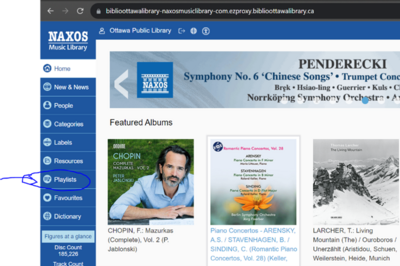
6. In the top-right corner, locate "Student/Member Account Login/Sign Up." Click on "Login."
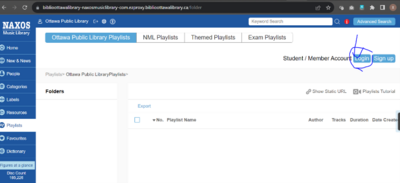
7. You will be redirected to the next page to reset your password or reactivate your account by logging in with the same credentials you previously used to access NML.

If you would like to close your account with Ottawa Public Library, please visit a branch or contact us via InfoServices.
How to activate your access to The Athletic
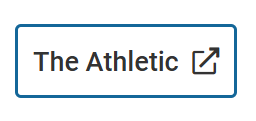
- Click on The Athletic
2. Continue to click "Redeem Gift".
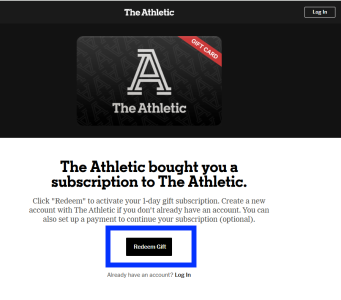
3. Create a new account or log in to your current account if you’ve already registered.
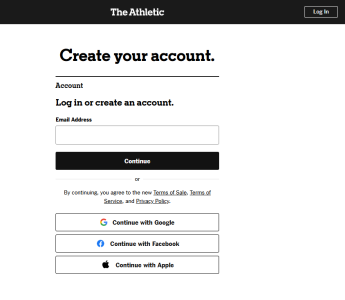
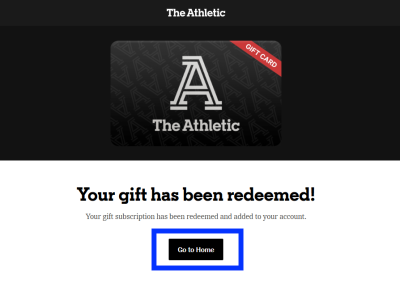
4.4. Click Go to Home.
If your information was entered correctly, you’ll be able to start personalizing you’re the Athletic experience.
In order to link/authenticate your new library card number to an existing PressReader account, you can follow the steps below.
- Go to http://www.pressreader.com/ and click Sign in in the top-right corner of the page.
- Enter your email address and password, then click Sign In.
- Once logged in, click the profile (silhouette) icon in the top-right corner and select My Account.
Scroll down to the Social and Linked Networks section and click Edit next to Library or Group.
Image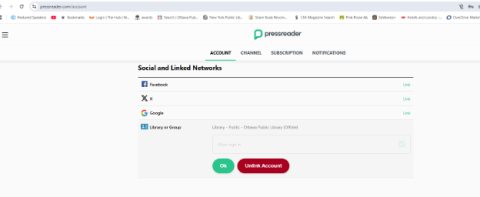
If a library card is already linked and you need to change it, click Unlink account first, then repeat this step.
- Select your library from the list, enter your library card credentials, and click Sign in.
Once the library card number is linked to a PressReader account, you can sign in using Library or Group with your library card number. This will automatically sign you in to the associated PressReader account.
If you have replaced your card since you first registered with Hoopla, you may need to update your card number in Hoopla.
- Sign in to your Hoopla account (with your email address and password) through the Hoopla link under the OPL online Resources portal or go directly to hoopladigital.com.
- Click on the gear (⚙️) icon in the top right corner to open Settings.
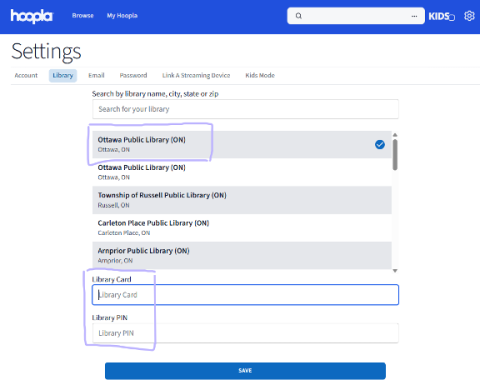
- Click on the "Library" tab.
- Do not enter spaces in the number field. Enter your new library card number in the field where your old number displays.
- In the PIN field, enter your PIN
- Click "Save". To save your changes. A green confirmation message should appear.
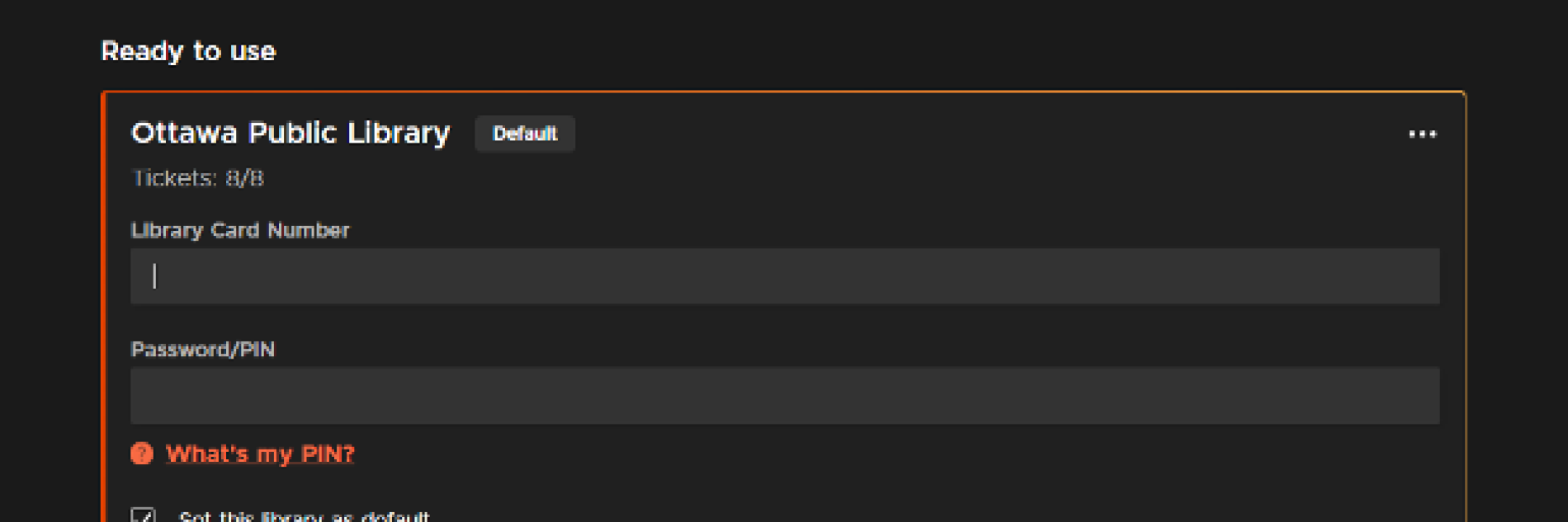
On the Kanopy website, you can update your library card number and PIN by selecting Edit on the My Libraries screen.
- Log in to your Kanopy account through Kanopy link under the OPL online Resources portal or go directly to kanopy.com
- Select the menu button in the top-right corner and go to My Account > My Libraries.
- Select ••• next to a library, then select Edit.
After selecting Edit, you can update your library credentials. You can also check the "Set this library as default" option to set a default library. Select Save to save your changes.
Getting Started with cloudLibrary app to get eAudiobooks on your Android device
-
Install cloudLibrary from Google Play
- Open the cloudLibrary app. You will first get a welcome screen. Tap anywhere to continue. Next, it will first ask you to select a Country. Make sure that Canada (CA) is selected. Tap on ‘Ontario’ and then tap on ‘Collection de livres audio de la Bibliothèque publique d’Ottawa / Ottawa Public Library Audiobook Collection’ from the list of libraries.
- Enter your library card / PIN and tap on ‘Login’. By continuing you are agreeing to cloudLibrary’s terms of use.
- Start browsing the collection. You can check out any available title or place a request.
- Checked out titles are available under ‘My Books’ and ‘Reading’ and requested titles can be found under ‘My Books’ and ‘Holds’.
- If you already have the cloudLibrary app installed on your device, open the app and tap on the icon of a person in the top right corner. Tap on ‘Add Account’. Select the language of your choice and then tap on the screen. Select Canada, and then Ontario and then ‘Collection de livres audio de la Bibliothèque publique d’Ottawa / Ottawa Public Library Audiobook Collection’ from the list.
- To toggle between the eAudiobook and express eBook collections tap on the person icon and tap the appropriate collection nam
Getting Started with cloudLibrary for Windows With a Windows computer
- Visit the cloudLibrary page at: https://ebook.yourcloudlibrary.com/library/oplaudio/Featured
- Click on Login and enter your library card and PIN
- Start browsing the collection. You can check out any available title or place a request. Checked out titles are available under ‘My Books’ and ‘Reading’ and requested titles can be found under ‘My books’ and ‘Holds’.
- Click on ‘Listen’. The eAudiobook will start playing in your web browser. Please note that offline listening is not available through the web app.
Getting started with cloudLibrary using iPhone/iPad
- Download cloudLibrary from the app store.
- Open the cloudLibrary app. You will first get a welcome screen. Tap anywhere to continue. Next, it will ask you to select a Country. Make sure that Canada (CA) is selected. Tap on Ontario and then tap on ‘Collection de livres audio de la Bibliothèque publique d’Ottawa / Ottawa Public Library Audiobook Collection’from the list of libraries.
- Enter your library card / PIN and tap on Login. By continuing you are agreeing to cloudLibrary’s terms of use.
- Browse the collection. You can check out any available title or place a request. Checked out titles are available under ‘My Books’ and ‘Reading’ and requested titles can be found under ‘My books’ and ‘Holds’.
- If you already have the cloudLibrary app installed on your device, open the app and tap on the icon of a person in the top right corner. Tap on ‘Add Account’. Select the language of your choice and then tap on the screen. Select Canada, and then Ontario and then ‘Collection de livres audio de la Bibliothèque publique d’Ottawa / Ottawa Public Library Audiobook Collection’ from the list. To toggle between the French eAudiobook and express English eBook collections tap on the person icon and tap the appropriate collection name.
Getting Started with cloudLibrary for Mac With a Mac computer
- Visit our page at: https://ebook.yourcloudlibrary.com/library/oplaudio/Featured
- Click on Login and enter your library card and PIN. By continuing you are agreeing to cloudLibrary’s terms of use.
- Browse the collection. You can check out any available title or place a request. Checked out titles are available under ‘My Books’ and ‘Reading’ and requested titles can be found under ‘My books’ and ‘Holds’.
- Click on ‘Listen’. The eAudiobook will start playing in your web browser. Please note that offline listening is not available through the web app.
You can create your own New Titles searches for your favourite items and save them to your account. You can then save your search and run it again later. That saves you time, especially if the search you’re doing is complex or if you search for new items often.
► To save a search
- Log in to your account. You must be logged in to save a search.
- Run your search. See Using Advanced Search and Writing Your Own Queries for information on creating complex searches.
- If required, narrow your results by applying facets on the left side of the page. See Filtering Search Results for details.
- When you have refined your search, run the search and click the Save Search link above the search results.
- Give the saved search a name that will allow you to easily identify it later. If you already have a search by that name, you’ll have the option to choose a new name or overwrite your existing saved search.
- Click Save it. Saved searches can be found by clicking on “My Library Dashboard”.
To modify a search
- Open a saved search by clicking on your Username at the top left corner - ‘My Library Dashboard – View My Saved Searches or clicking on a pre-existing search on the New Titles page.
- In the right-hand corner, click “Modify my search”.
- In the advanced search, you can add fields to refine the search or remove fields to broaden the search.
- To separate On Order and Just Arrived material, in the edit box add brackets around the existing search terms and add AND oo:(true) for On Order material or AND oo:(false) for Just Arrived material.
- Ex. To view on order adult mysteries, modify the existing search so that it becomes (collection:"Adult eng mystery" OR collection:"Adult eng pb mystery") AND oo:(true).
- When you have refined your search, run the search and click the Save Search link above the search results.
- Give the saved search a name that will allow you to easily identify it later. If you already have a search by that name, you’ll have the option to choose a new name or overwrite your existing saved search.
- Click Save it. Saved searches can be found by clicking on “My Library Dashboard”.
You can manage your saved searches after you’ve saved them. See Using and Managing Saved Searches for details.
Materials that off-gas hazardous chemicals when burned May Not be used.
Prohibited materials include:
- vinyl,
- painted or varnished wood,
- glazed tiles.
List of acceptable materials for the laser cutter
Wood
Engrave / Cut
Acrylic
Engrave / Cut
Fabric
Engrave / Cut
Glass
Engrave Only
Coated/Painted Metals
Engrave Only
Ceramic
Engrave Only
Delrin
Engrave / Cut
Cloth
Engrave / Cut
Leather
Engrave / Cut
Marble
Engrave Only
Matte Board
Engrave / Cut
Melamine
Engrave / Cut
Paper
Engrave / Cut
Mylar
Engrave / Cut
Pressboard
Engrave / Cut
Wood Veneer
Engrave / Cut
Fibreglass
Engrave / Cut
Tile
Engrave Only
Plastic
Engrave / Cut
Cork
Engrave / Cut
Corian
Engrave / Cut
Anodized Aluminum
Engrave Only*
Stainless Steel
Engrave Only*
Brass
Engrave Only*
Titanium
Engrave Only*
Bare Metals
Engrave Only*
*CO2 lasers will mark bare metals when coated with a metal marking solution.
Getting started with digital media
New to the world of OPL's digital collection? Here are some guides.
Magazines
Ebooks and audiobooks
Device guides
You can download and read our collection of eBooks and audiobooks on your computer, laptop, smartphone, tablet, or eReader. These device guides can help you.
Android smartphone or tablet (includes Amazon Fire tablets, NOOK tablets, and Kobo tablets)
iOS Devices (iPhone, iPad, iPod Touch)
eInk eReaders (such as the older Kobos, Kobo Glo or Aura HD)
- eBooks and audiobooks from OverDrive for most eReaders
- French eBooks from Cantook Station for most eReaders
Mac computer
Windows computer
Need additional help?
In-person help
Getting started with cloudLibrary using Android
You can use the cloudLibrary app to get express eBooks and audiobooks on your Android device
Step 1
Install cloudLibrary from Google Play
Step 2
Open the cloudLibrary app. You will first get a welcome screen. Tap anywhere to continue. Next, it will first ask you to select a Country. Make sure that Canada (CA) is selected. Tap on Ontario and then tap on Ottawa Public Library from the list of libraries.
Step 3
Enter your library card / PIN and tap on Login. By continuing you are agreeing to cloudLibrary’s terms of use.
Step 4
Since holds are not allowed on the entire cloudLibrary collection, we suggest that you use the filter option. To display only titles that are available, tap on the top left hand corner of the app. Next, tap on Filters, then on the box beside Available Now.
Getting Started with cloudLibrary for Windows and Kobo
With a Windows computer, you can borrow and enjoy eBooks and audiobooks from cloudLibrary’s website.
Step 1
Visit the cloudLibrary page at: https://ebook.yourcloudlibrary.com/library/ottawapl/
Step 2
Click on Login and enter your library card and PIN
Step 3
Our Express collection does not allow for holds. To see what titles are available, click on Filters, and choose Available Now.
Step 4
Choose an available title and click on Borrow.
Step 5
Click on Read or Listen. The title will open in your web browser. To view or return checked out titles, click on My Books
To transfer titles to a Kobo
Please follow these instructions for transferring express eBooks to a Kobo eReader
How do I return an eBook?
Please note that you can only have 2 Express eBooks checked out at a time. To return an eBook click on My Books, List View, and then Return.
I accidentally accepted the cloudLibrary ID instead of installing my personal Adobe Digital Editions ID.
For Windows 7 Go to the Start menu. Search %appdata% This should pull up a list of folders. Delete the cloudLibrary folder (basically just its cache, it is also where it stores an Adobe ID for DRM purposes). The next time you check out a book in the cloudLibrary and open it, the cloudLibrary will use whatever Adobe ID your Adobe Digital Editions is authorized with. If you do not have ADE, it will ask if you wish to use the system-generated ID or to enter your own.
CloudLibrary installation & account FAQ http://www.yourcloudlibrary.com/index.php/en-us/support/installation-account
Getting started with cloudLibrary using iPhone/iPad
You can use the cloudLibrary app to get express eBooks and audiobooks on your Apple device
Step 1
Download cloudLibrary from the app store.
Step 2
Open the cloudLibrary app. You will first get a welcome screen. Tap anywhere to continue. Next, it will ask you to select a Country. Make sure that Canada (CA) is selected. Tap on Ontario and then tap on Ottawa Public Library from the list of libraries.
Step 3
Enter your library card / PIN and tap on Login. By continuing you are agreeing to cloudLibrary’s terms of use.
Step 4
Since holds are not allowed on any title in this collection, we suggest that you use the filter option. To display available titles, tap on the three lines at top left hand corner of the app. Next, tap on Filters, then on Available Now.
Getting Started with cloudLibrary for Mac
With a Mac computer, you can borrow and enjoy eBooks and audiobooks from cloudLibrary’s website.
Step 1
Visit our page at: https://ebook.yourcloudlibrary.com/library/ottawapl/
Step 2
Click on Login and enter your library card and PIN
Step 3
Our Express collection does not allow for holds. To see what titles are available, click on Filters, and choose Available Now.
Step 4
Choose an available title and click on Borrow.
Step 5
Click on Read or Listen. The title will open in your web browser. To view or return your checked out titles, click on My Books
To transfer titles to a Kobo
Download the software from http://yourcloudlibrary.com. CloudLibrary recommends that you download their software while using Safari. CloudLibrary is supported for Mac OS 6 and newer operating systems so if you’re unsure of your version, please click on the apple icon in the top left corner and then click on About this Mac.
Once installed, cloudLibrary will prompt you for your location as well as your Library Card number and PIN. You must agree to their legal terms before continuing.
If you have a pre-existing Adobe ID (that you use for Overdrive) please enter it here so that you can download both Overdrive and cloudLibrary titles.
Example 1, CloudLibrary detects your Adobe ID
Example 2, If CloudLibrary doesn’t detect your Adobe ID and you use or plan on using Overdrive, choose ‘Explicitly provide an Adobe ID’ and enter it manually. If you do not have an Adobe ID, go to Adobe’s website to create one: http://www.adobe.com/ca/solutions/ebook/digital-editions.html
Go to My Books to see checked out eBooks. If your Kobo is connected to your computer, the Transfer to Device button should appear. Click on this button.
How do I return an eBook?
Please note that you can only have 2 Express eBooks checked out at a time. To return an eBook click on My Books, List View, and then Return.
Please note:
- You must create a New York Times account to access.
- An email address is required
- There is a daily limit on how many remote passes are available.
- Access does not include the New York Times crossword puzzle and e-reader editions.
- If you get a subscription notice while browsing the site, please ignore.
Accessing the New York Times website:
In Library Use
- Go to https://www.nytimes.com
- Click on 'Log In' in the top right corner
- If you haven't created an account, click on Sign Up. If you have already created an account, enter your email and password
Remote Access
- Visit the OPL website and click on the link provided
- Enter your library card and PIN
- If you haven't created a New York Times account, click on 'Create Account'. If you have already created an account, click on 'Log in here' and enter your email and password
- Once activated, you will get a message that indicates when your pass expires and a link to go to NYTimes.com
- Once you've activated your New York Times Pass, you can optionally download and install the apps for iOS, Android or Blackberry to access. In the app, you must log in using your NYT account.
For a list of what you have access to with a library card, consult this webpage: https://biblioottawalibrary.ca/en/fees-and-loans
Note that some cards provide different limits for specific items. Please ask staff in our 33 branches or call Infoservice at 613-580-2940.
To access your online account, simply login with your Library card number or username and PIN. If it's your first-time logging in, you'll need to complete a short registration form where you'll choose an easy to remember username.
You can go to one of our 33 branches and ask branch staff for help or call Infoservice at 613-580-2940.
To change your personal information:
- Access the Settings area of the catalogue and login to your account.
- You can change your username, update your email address, change your branch and create a new PIN.
- If you need to update your postal address or telephone number, visit your local Library branch with proof of your new address.
All eligible library items renew automatically prior to the due date.
If you wish, you can also renew Library materials manually in these ways:
- By using our online catalogue. Access your account to renew items, see what’s out on your card or monitor your requests by clicking on My Borrowing.
- By touch-tone phone at 613-580-2535 (TeleCIRC).
- In person at any branch.
- Calling our central line at 613-580-2940
Library materials can be renewed except in the following circumstances:
- There is a request on the item.
- The maximum renewal limit on the item has been reached
- There is an outstanding balance on your account of $25 or more.
- Your Library card has expired.